Getting started. For everyone.
What every person at the centre needs on the first day: signing in, finding your way and the things that work the same on every screen.
Signing in
- Open your centre's own address, for example
yourcentre.rehabsoftbd.com. - Type your short login (the part before
@) and your password. - The first time, or after someone reset your password, choose your own new password before anything else. Use at least 8 characters; very common passwords and passwords of only digits are refused.
Five wrong passwords lock your login for 5 minutes; then try again. A sign-in lasts 12 hours, a working day. After that, sign in again.
Forgot your password? On the sign-in page choose Forgot your password?, type your login and open the link in the e-mail within 24 hours. The e-mail goes to the address on your profile. If you have none, ask the Centre Owner to reset your password.
Finding your way
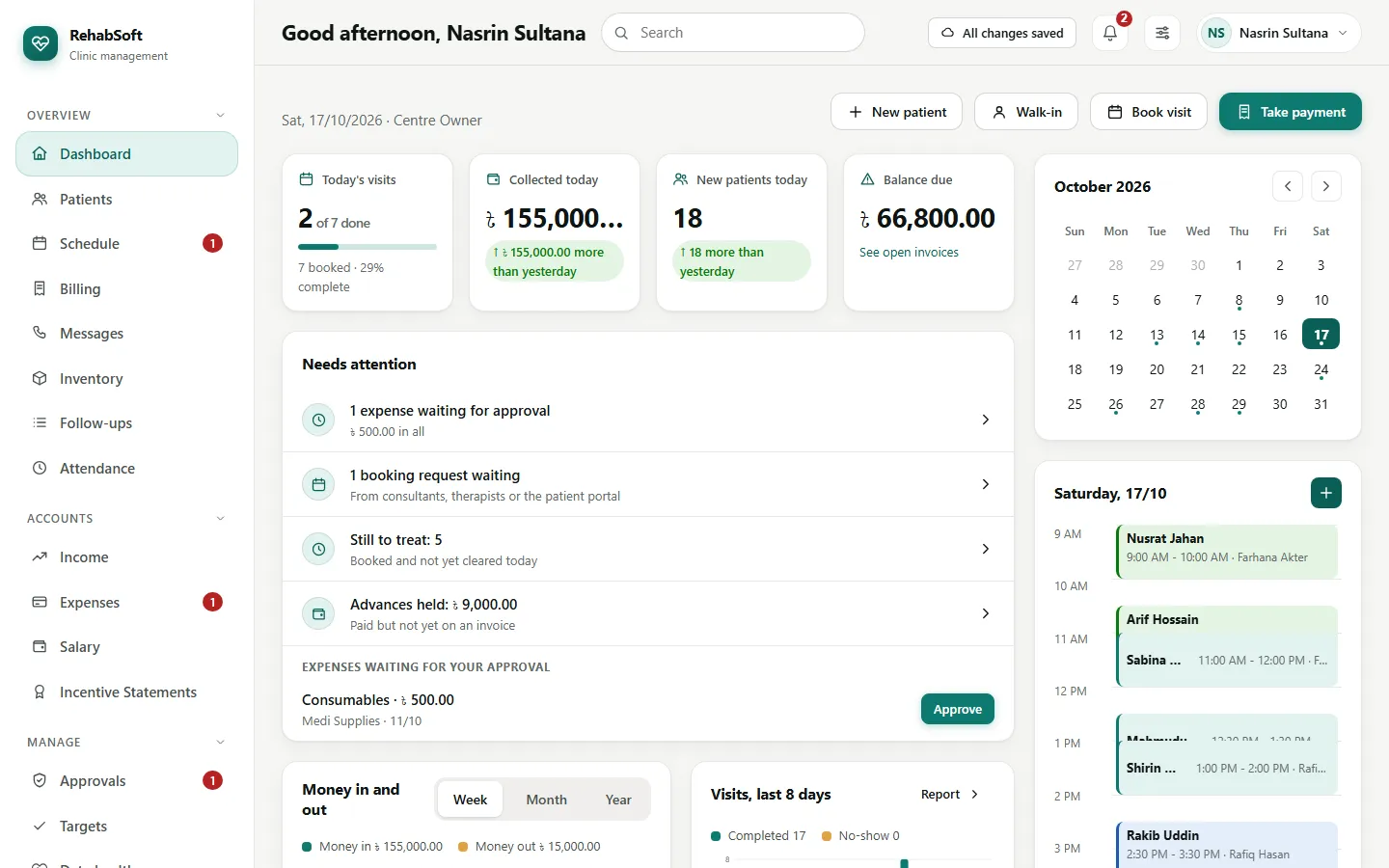
- Sidebar on the left: everything your role may open. On a tablet it becomes a row of icons; on a phone, tap the menu button at the top.
- Top bar: the page title, the search box, the save status, the bell (things waiting for you) and your name.
- Your name (top right) opens the account menu: My profile (password, photo, e-mail), the branch you are working at, light or dark, Where you are signed in, What's new, Report a problem, Install app and Sign out.
- The branch you are working at matters: money, stock and visits are recorded at that branch.
One search for everything
Press / or Ctrl+K anywhere to jump to the search box. Type a name, a phone number or a patient ID; suggestions appear while you type. An exact invoice, receipt or voucher number opens that document straight away, and so does "voucher 7", "expense 7" or "income 3". You only find what your role may open.
The save status
The top bar shows All changes saved when everything has reached the server. If the connection drops while you save, you see "Saved on this device". The work is kept and sent by itself when the connection comes back. Do not close the browser until it says All changes saved again.
Dates and money
- Every date is day/month/year:
17/10/2026. A date box accepts it with or without slashes and has a calendar button. - Money is in taka with two decimals. Printed receipts also write the amount in words, in lakh and crore.
Follow-ups
A follow-up is a small task: what to do, a date and one person it is for, optionally about one patient. Anyone at the centre can make one from Follow-ups in the menu, from the patient page or from the dashboard card. It is seen by the person it is for, the person who made it and the Centre Owner. Close it as Done (with a note) or Not needed. The menu badge counts what is due today or overdue for you.
Attendance and leave
Attendance in the menu: on the Leave tab ask for casual, sick, annual, unpaid or other leave with the first and last day and a reason; the Centre Owner approves it or says why not. A therapist's approved leave warns anyone who tries to book them that day. Reception and the owner mark the day's attendance on the Today tab.
Where you are signed in
Account menu > Where you are signed in lists your own sessions: browser, system, address and time, with this device marked. Sign out one device or Sign out of all other devices. When your account is used from a new device, your other sessions show a notice until you press This was me, and an e-mail goes to your address if you have one.
What's new, and reporting a problem
- After an update you see one banner, What's new, until you dismiss it or open it. The page explains each change in plain words.
- Report a problem (account menu) sends a short report to the people who run RehabSoft, with the page address and, if you like, a screenshot. You see the answer in the same place.
Small things that help
- Lists can be sorted by clicking a column heading, and most have a search box and filters.
- Clicking anywhere on a row opens that patient, person or item.
- On a phone, tables turn into one card per row.
- A status always has a word and an icon, never only a colour.