Run the front desk. Arrived, started, done.
Three buttons carry a visit through the day. Pressing them on time also gives the owner true waiting times.
The day view
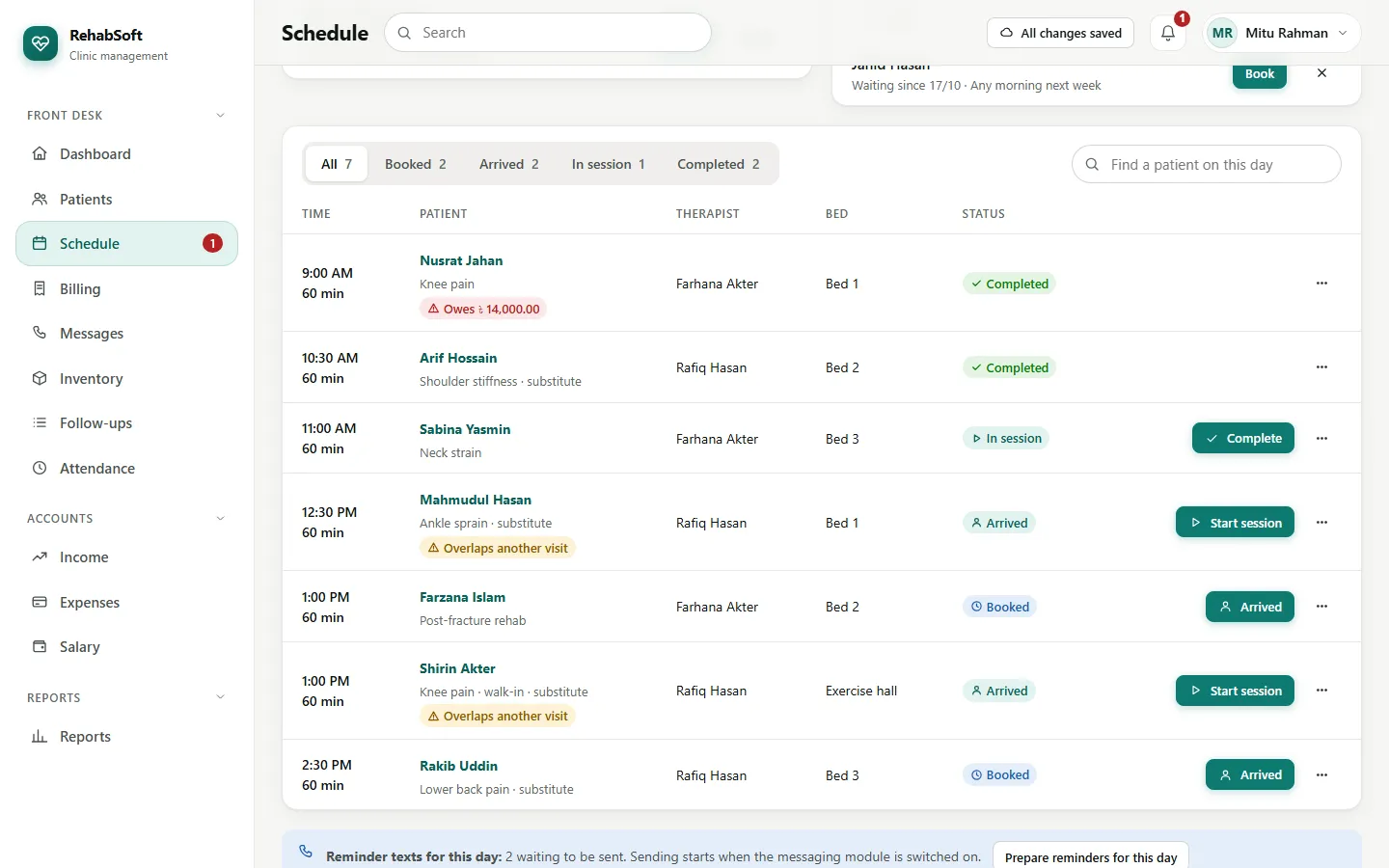
Arrived when the patient walks in. A red warning appears if their due is above the owner's limit; it never stops you.
Start session when the therapist takes them in.
Complete at the end. If they have a package, choose it: one session is used.
Someone without a booking? Walk-in books and seats them at once. Change of plan? Move to another time, Change therapist or Cancel visit; the history keeps the old time. A no-show is marked only after the day is over, and does not use a session.
Check in from the patient card
Print each regular patient a card: patient page > More > Print patient card. It is the size of a bank card, with a QR code.
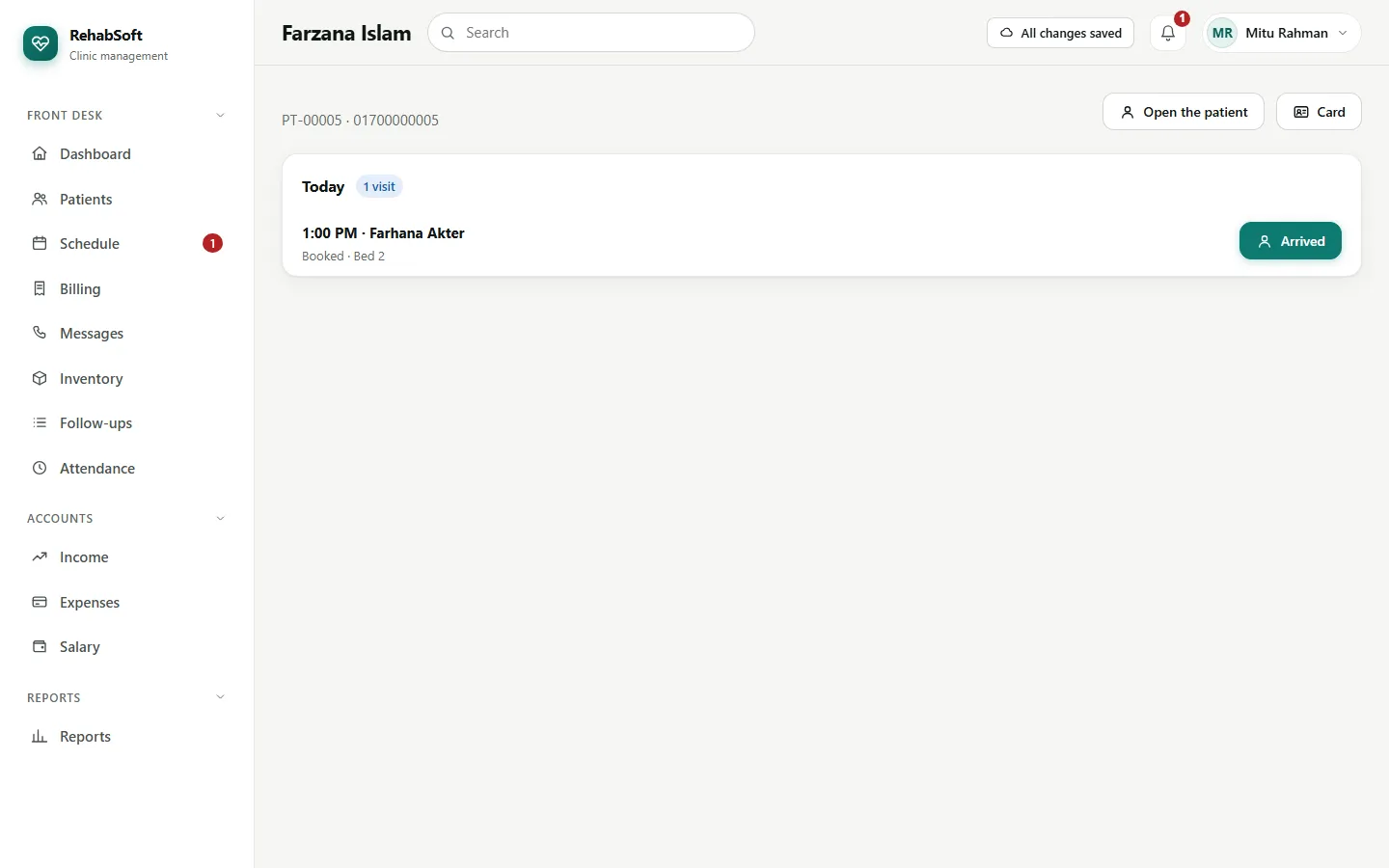
When they come, scan the code with the desk phone's camera, or type the patient ID into the search box.
The check-in page shows today's visits and one button for the next step. Press it.
Booking requests and the waiting list
At the top of Schedule, Booking requests collects visits that consultants, therapists and the patient portal asked for: Book opens the booking with everything filled in. The Waiting list keeps people who want an earlier slot.
End of day
- Print sheet on Schedule prints the day's A4 sheet, one block per therapist.
- Billing > Day book counts the cash for the day.