Centre Owner. The whole centre.
You have everything Reception has, plus management. Clinical notes are hidden from you unless you hold the Owner + Clinician permission (set on the Team page).
Set up the centre first
Until four things are done, the patient portal and the QR registration form stay closed, so patients never see a sample name. The checklist sits at the top of Settings, with a reminder on the dashboard:
- Your branch has its own name (Settings > General).
- The receipt, invoice and prescription have your own header (Settings > Printing & documents > Edit).
- A logo is uploaded.
- The prescription paper is chosen (Settings > Prescription pad).
Staff screens work from the first day; only the patient-facing pages wait. The set-up tutorial walks through it.
Approvals
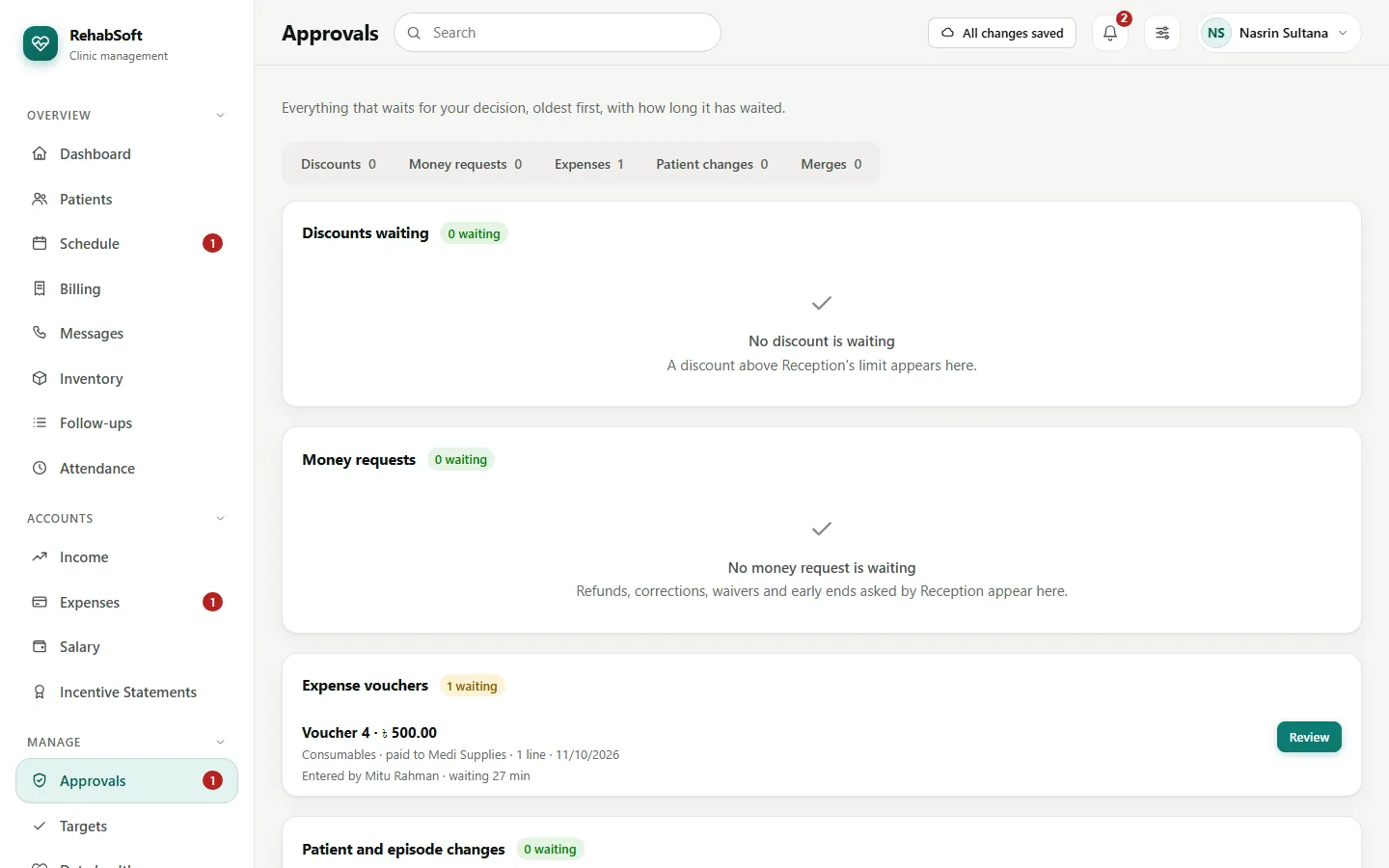
Approvals gathers what waits for you: discount requests, refunds and corrections, expense vouchers, patient changes that need approval (for example a referral source) and duplicate merges. Each shows what will change and how long it has waited. Approve or Reject (a reason is required to reject). The menu badge counts them all.
Team
- Team: everyone who signs in, and therapists without a sign-in. + New staff creates an account with a temporary password (shown once, or e-mailed as a link).
- Click a person to see their page: profile, working hours, and for a therapist their patients, visits, no-show rate and schedule. Buttons: Edit details, Reset password, Deactivate, clinical access, and Sign out of devices.
- A role is never changed: close the account and create a new one.
- Attendance > Month counts present, late, absent and leave per person. Nothing is deducted from salary automatically.
See what each role sees
Settings > See what each role sees lets you look at the system as Reception, a Consultant or a Therapist. It is read-only: nothing can be changed while you look, a banner reminds you, and clinical notes still follow your own access.
Money
- Services: categories, services, packages and prices per category.
- Salary people and Salary: monthly salary, then the pay list. Approved incentives appear on the salary sheet.
- Incentive rules and Incentive Statements: set who earns what; approve each person's month (Approve everyone waiting reports anyone it skipped and why).
- Expenses: approve, then Pay when the money actually goes out.
Targets
Manage > Targets: for each branch, the money to collect, completed visits and new patients for the month, and completed visits per therapist. An empty box means no target. Progress appears on your dashboard and in the morning summary, counted the same way as the reports.
Reports
Reports has collections, dues by age, packages, visits, waiting time, therapist and consultant activity, referrers, patients, companies, incentives and the cash reports. Each compares with the period before, prints, and saves as a spreadsheet file (Save as a file (CSV)).
Waiting time measures the minutes from Arrived to Start session, by day, therapist, branch or hour, with the average, median and longest.
Your morning summary
My profile > E-mail > Send me a summary every morning. One e-mail a day with yesterday's money and visits, new patients, today's bookings, dues, what waits for you, the month's targets and the state of the last backup. Counts and money only; no patient's name is in it.
Data health
Manage > Data health finds what needs tidying: patients without a phone number, people probably registered twice, one phone on different names, drafts left unsigned for more than two days, and re-assessments that are due, per person. It never shows clinical content.
Settings
Settings has tabs:
- General: centre and branches, Add a branch.
- Scheduling: visit length, opening hours, lunch hour, beds and rooms, holidays.
- Billing: Reception's discount limit, the due warning, starting balances.
- Printing & documents: every printed document with Edit: title, paper, header lines, footer lines and signature line. Each save is a new version, and Use this brings back an earlier one; documents already printed keep the version they were printed with.
- Prescription pad: the pad picture, ready lines, treatments and medicines.
- Patients: referral sources.
- Messaging: whether texts and e-mail are really sent, the sender ID, the wording of each text with its length and SMS count, and the daily limit.
- Patient portal: what patients may see, and portal activity.
- Subscription: plan, payments and support access for the platform (1, 4 or 24 hours, read-only).
The built-in texts are short English that fit in one SMS. Bangla or a special sign such as the taka sign allows only 70 characters per SMS, so a Bangla text usually costs two. Settings > Messaging shows the cost before you save.
Forms and parameters
- Forms: assessments, re-assessments, session notes and functional tests. Forms provided with the product can be used as they are, copied (Duplicate) or retired. New form opens the form builder.
- Parameters: the measurements forms are built from. If one is missing, a clinician can Propose a parameter; you approve it or send it back with a reason.
- Forms > New form. Give it a name and choose the kind.
- In a measurement table choose Add parameters here and pick measurements from the library. A measurement with left and right adds both rows.
- For each row choose how it appears in the progress report: In the report, Other measures or Not in the report.
- Add other fields (text, yes or no, date, body chart, signature) and sections, then Save.
- A clinician's form is private until they choose Use for the whole centre; you Approve or Send back. Changing a form in use makes a new version; records already written keep theirs.
Clinical log, inventory and messages
- Clinical log: who opened, printed or uploaded which clinical item.
- Inventory: add items and equipment, correct a count (Correct the balance), see low and out-of-stock items.
- Messages: as Reception, plus Edit wording.